
How do I generate and refine images?
Write better prompts, choose the right model, generate multiple variants, and refine any image into a new version - all from the BrandGen canvas.
Writing a good prompt
Your prompt describes the scene or asset you want. Brand DNA (colors, style, tone) is applied automatically - you do not need to repeat brand details in every prompt.
Focus on the scene, not the brand:
- "Bold flat-lay product shot on a dark wood surface" - good
- "Bold flat-lay product shot using our brand colors on a dark wood surface" - redundant
Keep prompts specific about subject and composition. BrandGen handles the brand layer.
Choosing a model
Open the model selector in the prompt bar to choose between the models available on your plan. The selector and Pricing show the current model lineup, availability, and credit details.
If you are unsure which model to use, start with the default model for your plan and switch when you want to compare style, speed, or output behavior.
Generating variants
Your plan controls how many variants (versions of the same prompt) can be generated per submission. The app shows the variant options available to you.
Click Generate to submit. All variants from one submission share a batch - they appear together in your project canvas.
Refining an image
Refining creates a new image based on an existing one while preserving its composition and brand feel.
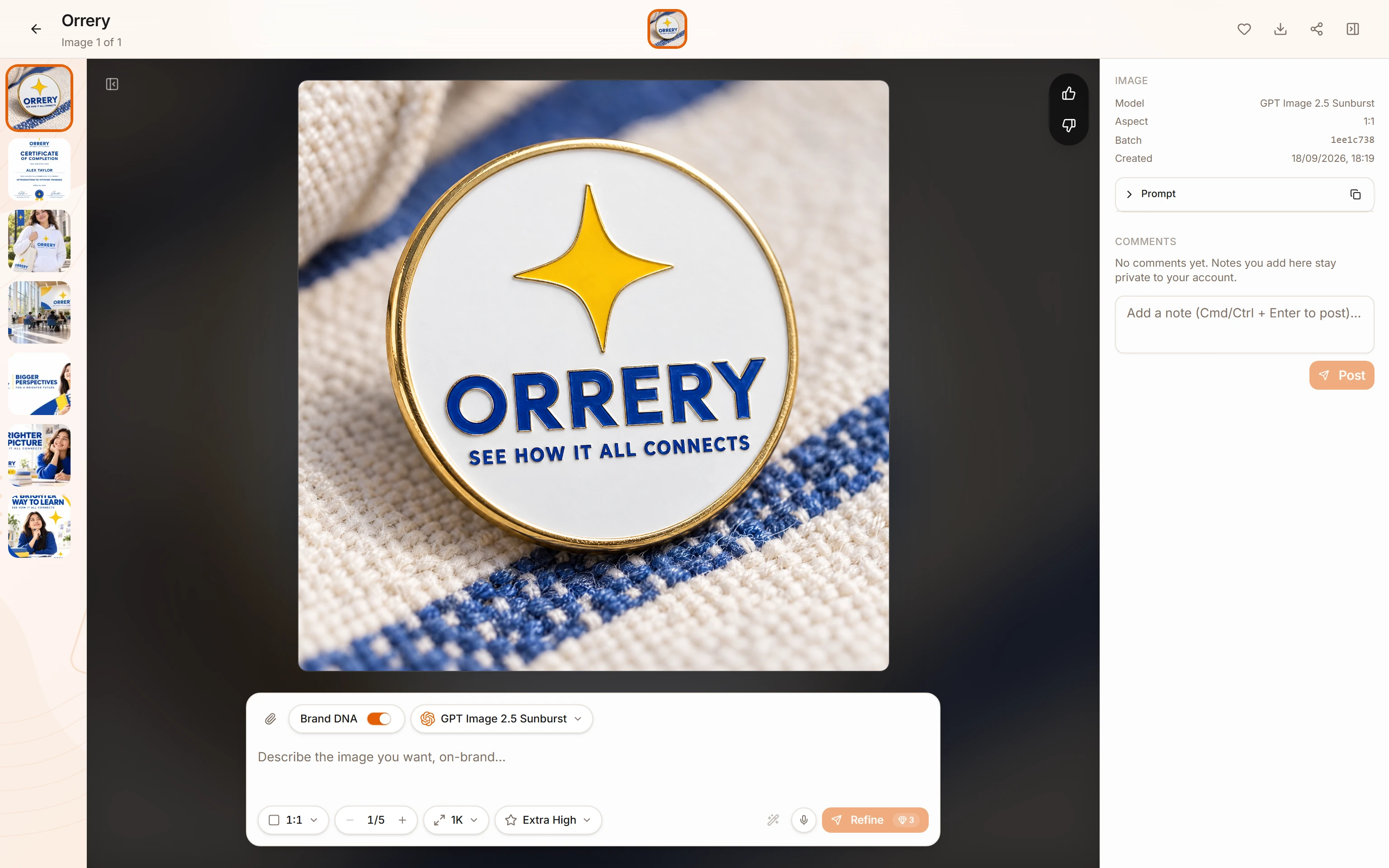
- Click any image in the canvas to open the image editor at
/p/[id]/edit/[imageId].
Related articles
- How do I create my first project?Learn how to create a new project in BrandGen, set up your Brand DNA, and generate your first on-brand image.Getting started - 2 min read
- How do I set up my Brand DNA?Brand DNA is the extracted color palette, visual style, and tone that BrandGen applies to every image it generates for your brand.Brand DNA - 2 min read