
How do I rename, archive or delete a project?
Open the ⋮ menu on a project's tile and choose Rename, Archive or Delete. Archived projects can be restored anytime. Deleting a project removes it and all its images for good.
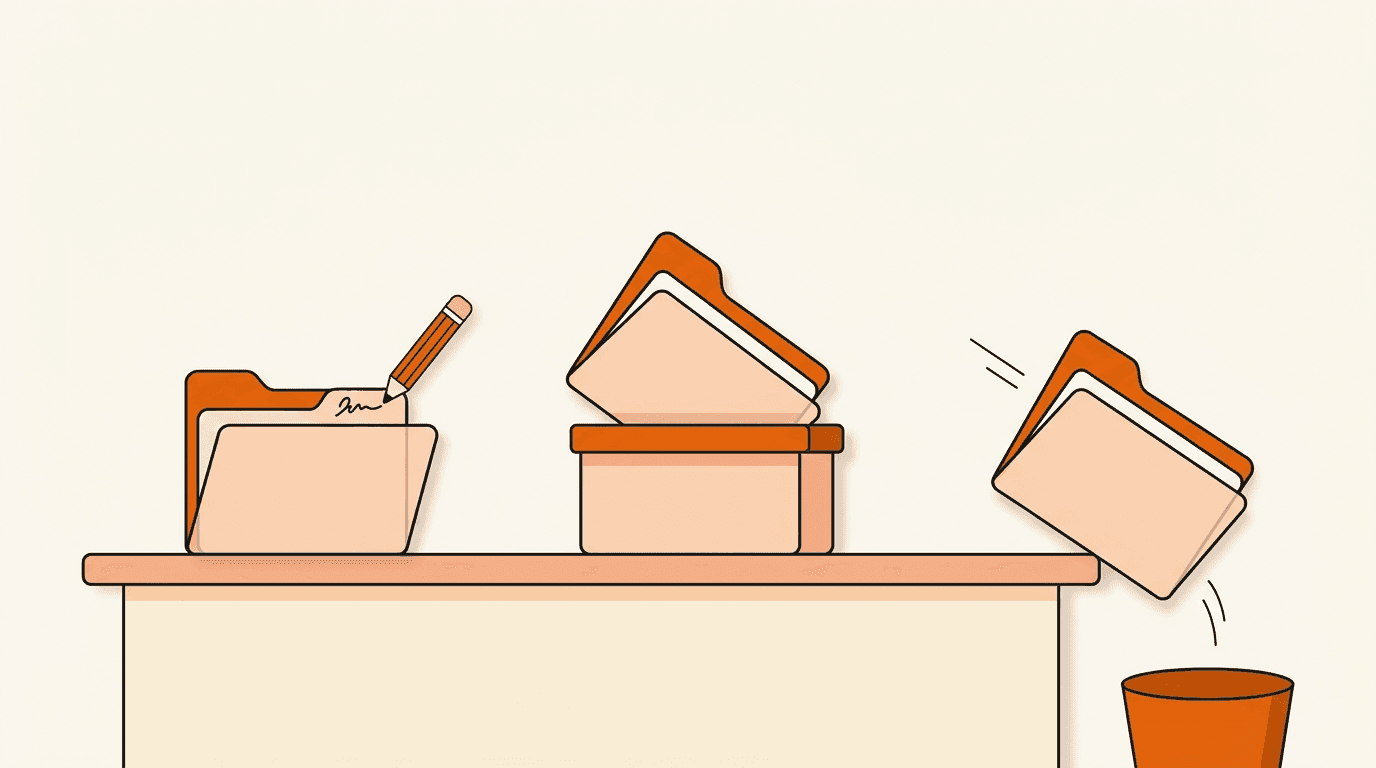
Short answer: on Your projects, click the ⋮ menu on a project's tile and choose Rename, Archive or Delete. Archiving hides a project and you can restore it anytime. Deleting removes the project and all its images permanently.

How do I rename a project?
- Click the ⋮ menu on the project's tile and choose Rename.
- Type the new name in the Rename project window.
- Click Save, or press Enter.
You can also rename a project from inside it: use the rename button next to the project name at the top of the page.
How do I archive a project?
- Click the ⋮ menu on the project's tile and choose Archive.
- Confirm in the Archive this project? window.
The project moves to your archived projects. Nothing is deleted: its images and Brand DNA stay as they are. You can also archive a project from the button next to its name at the top of the project page.
How do I get an archived project back?
Once you have at least one archived project, Your projects shows two tabs: All and Archived.
- Open the Archived tab.
- Click the ⋮ menu on the project's tile and choose .
Related articles
- How do I create my first project?Learn how to create a new project in BrandGen, set up your Brand DNA, and generate your first on-brand image.Getting started - 2 min read
- What's the best brand image to upload?Upload one finished design you have already published, like a social post or ad, that shows your logo, colors, fonts and style together. Here is how to pick it, with real results.Brand DNA - 5 min read