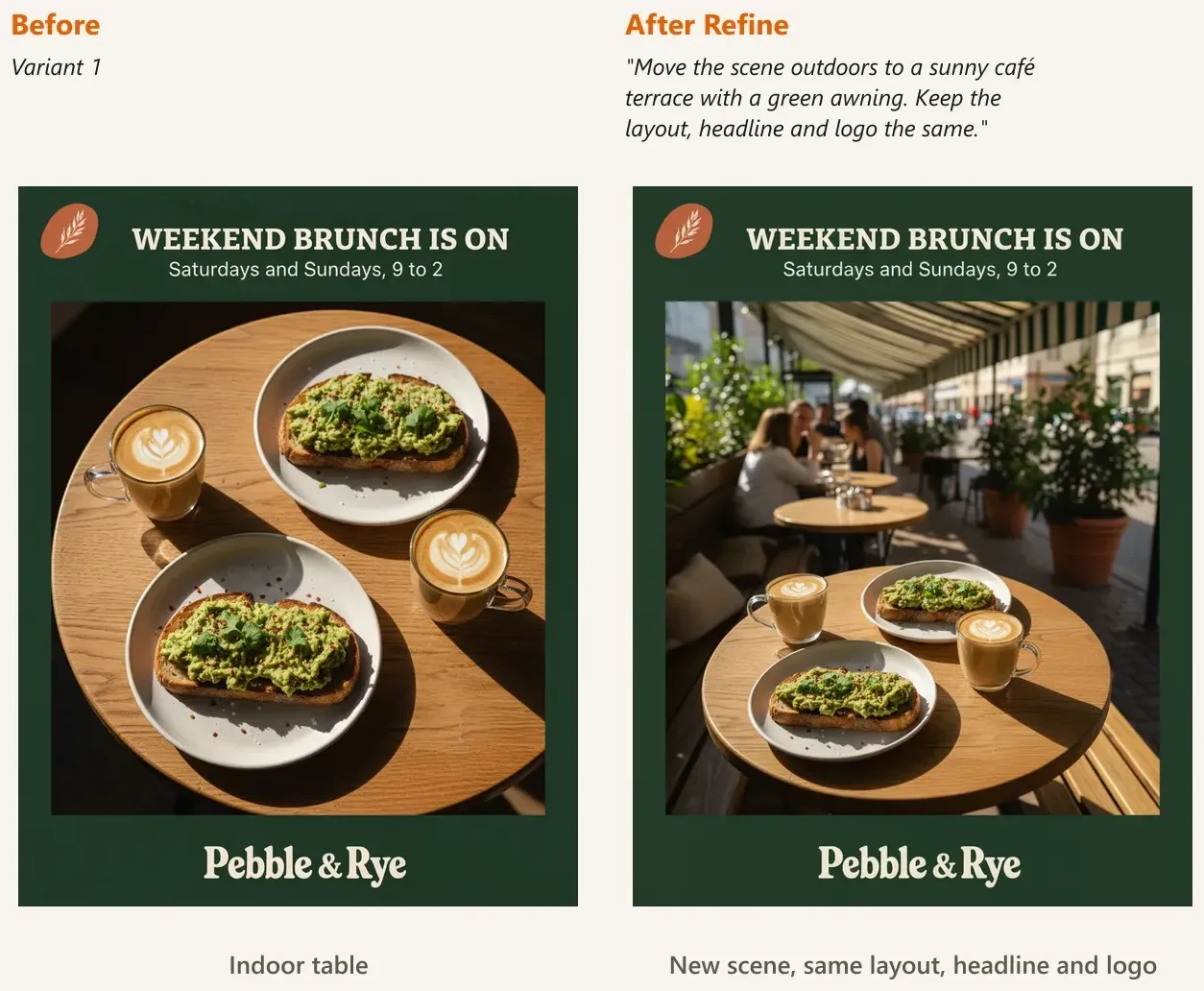
How do I refine an image, compare variants and leave comments?
Generate a few variants, open the one you like, describe what to change with Refine, and keep private notes in Comments. Here is how each step works, with real examples.
Short answer: generate a few variants of the same prompt, open the one you like, and use Refine to describe what to change. BrandGen keeps every version, and you can leave private notes on any image in Comments.
How do I get more than one option?
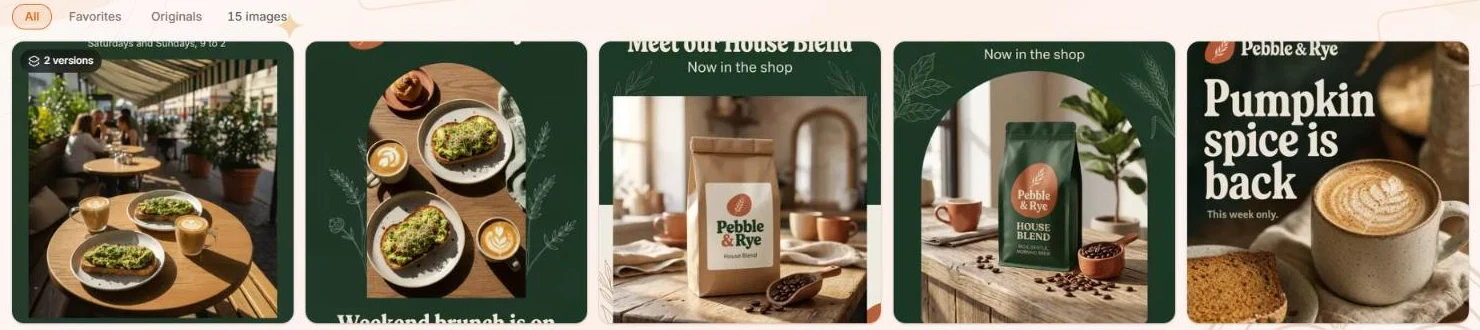
Before you click Generate, use the + and - buttons next to the number in the prompt bar (for example 2/5) to choose how many variants you want. BrandGen makes them all from the same prompt, and each one is a different take.
- How many variants you can make at once depends on your plan. See Pricing.
- Each variant costs credits. The Generate button shows the total before you click.
- New variants show a small label like 1/2 and 2/2 while they're being made.
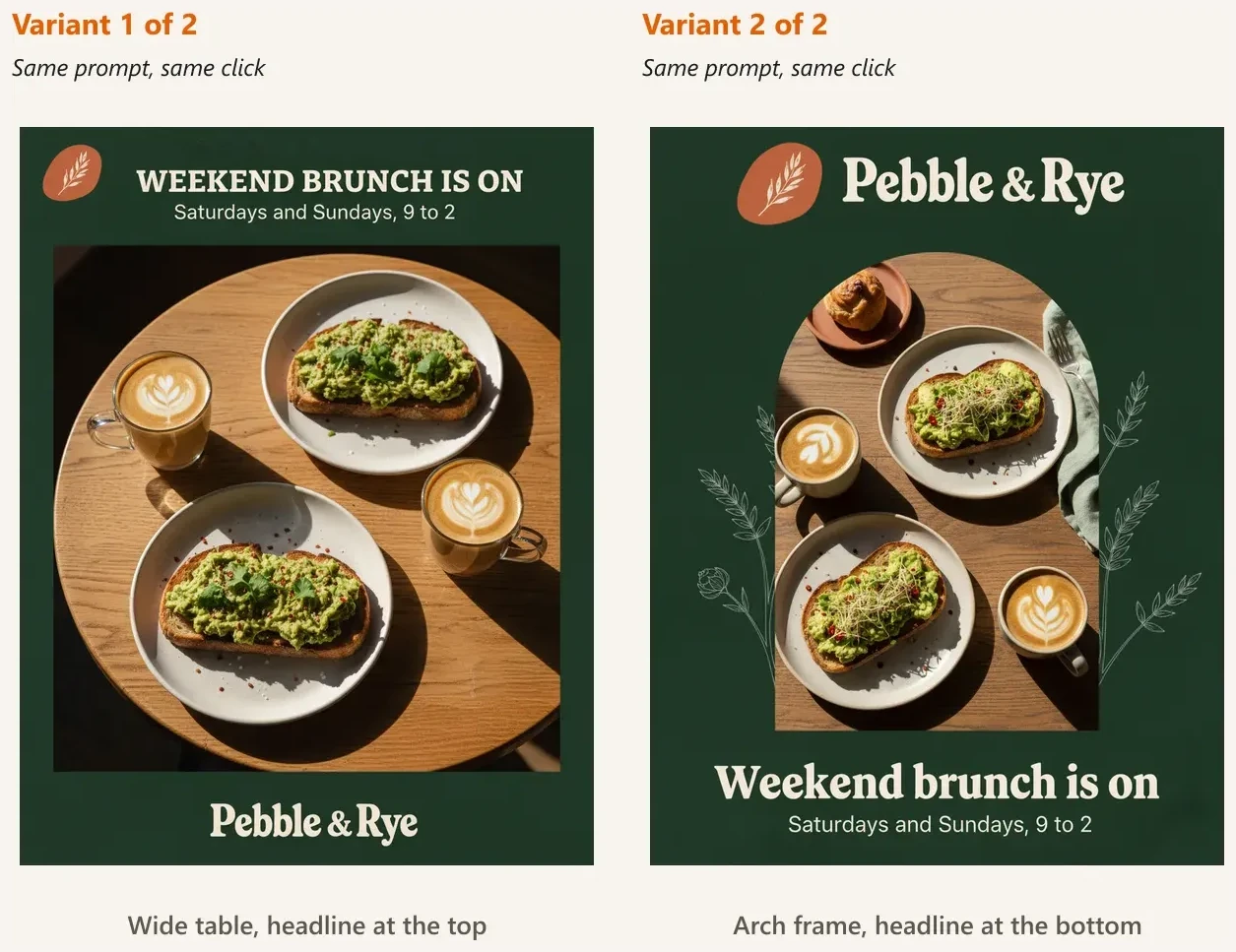
How do I compare variants?
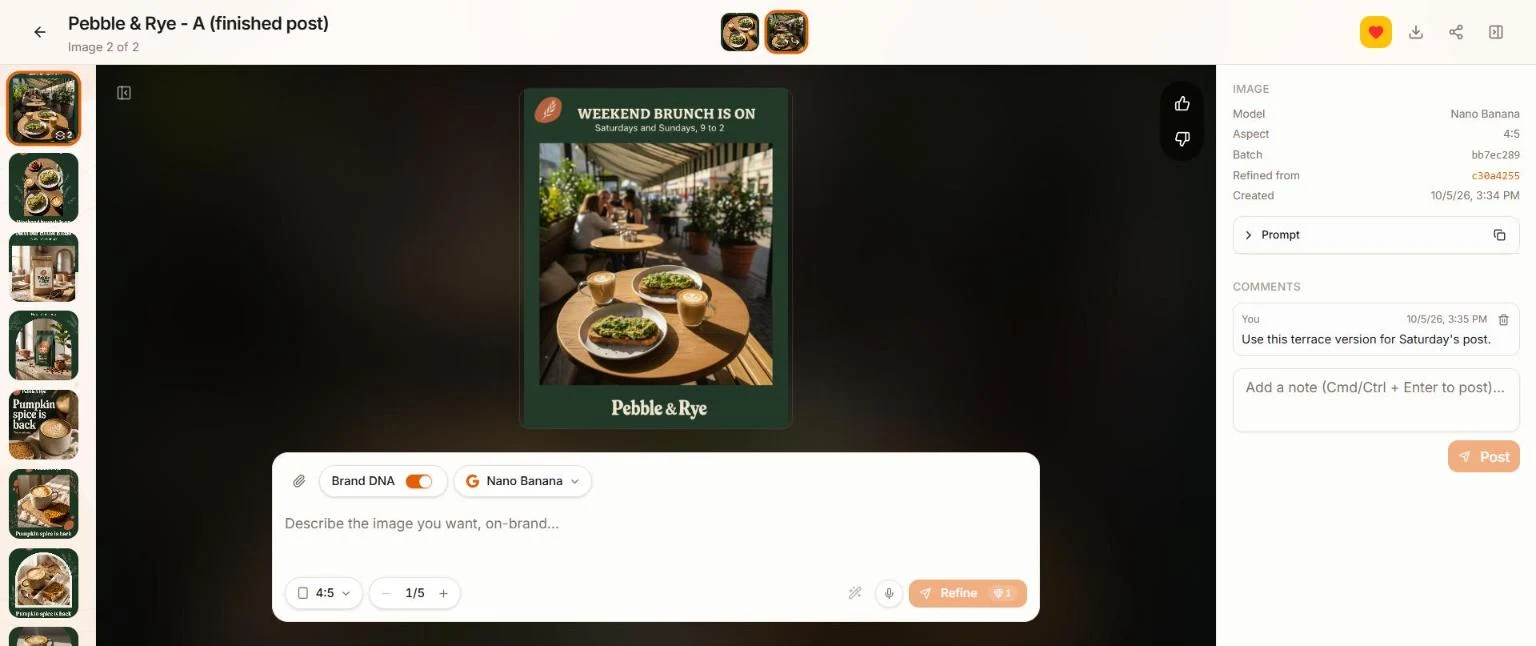
Click an image to open it. The image rail on the left lists every image in the project, so you can click through them and compare side by side with the one in the middle.
While you compare:
- Like or Dislike an image with the thumbs on the right of the preview.
- Favorite it with the heart at the top. The Favorites filter on the project page then shows only the images you've marked.
- Download it with the arrow at the top.
How do I refine an image?
Related articles
- How do I add a logo or product photo to my prompt?Click the paperclip in the prompt bar and attach one image, like a product photo or your logo. BrandGen keeps what the image shows and builds the scene from your prompt. Real before and after inside.Generating & refining - 4 min read
- How do I generate and refine images?Write better prompts, choose the right model, generate multiple variants, and refine any image into a new version - all from the BrandGen canvas.