How do I add a logo or product photo to my prompt?
Click the paperclip in the prompt bar and attach one image, like a product photo or your logo. BrandGen keeps what the image shows and builds the scene from your prompt. Real before and after inside.
Short answer: click the paperclip in the prompt bar and attach one image, like a photo of your product or your logo file. BrandGen uses it for the product or identity it shows, and builds the scene and layout from your prompt.
How do I attach an image?
- Click the paperclip at the left of the prompt bar.
- In the Attach an image panel, click + and choose an image from your computer, or pick your brand image. A small thumbnail replaces the paperclip.
- Write your prompt as usual and click Generate.
Accepted files are PNG, JPEG, WebP, GIF, TIFF, HEIC and SVG. Large photos are fine: BrandGen scales them down automatically.
What does the attached image do?
It tells BrandGen what to show, not how the image should look:
- The attachment gives the product or identity: your real bag, bottle, box or logo.
- Your prompt gives the scene, layout and text.
- Your Brand DNA still gives the colors, fonts and style.
We tested this with a photo of a café's real coffee bag. Same project, same prompt, same model, once without the photo and once with it attached:
Instagram post announcing our new House Blend coffee beans. The bag standing on a wooden café counter next to a small scoop of roasted beans, soft morning light. Headline: "Meet our House Blend". Small line under it: "Now in the shop".
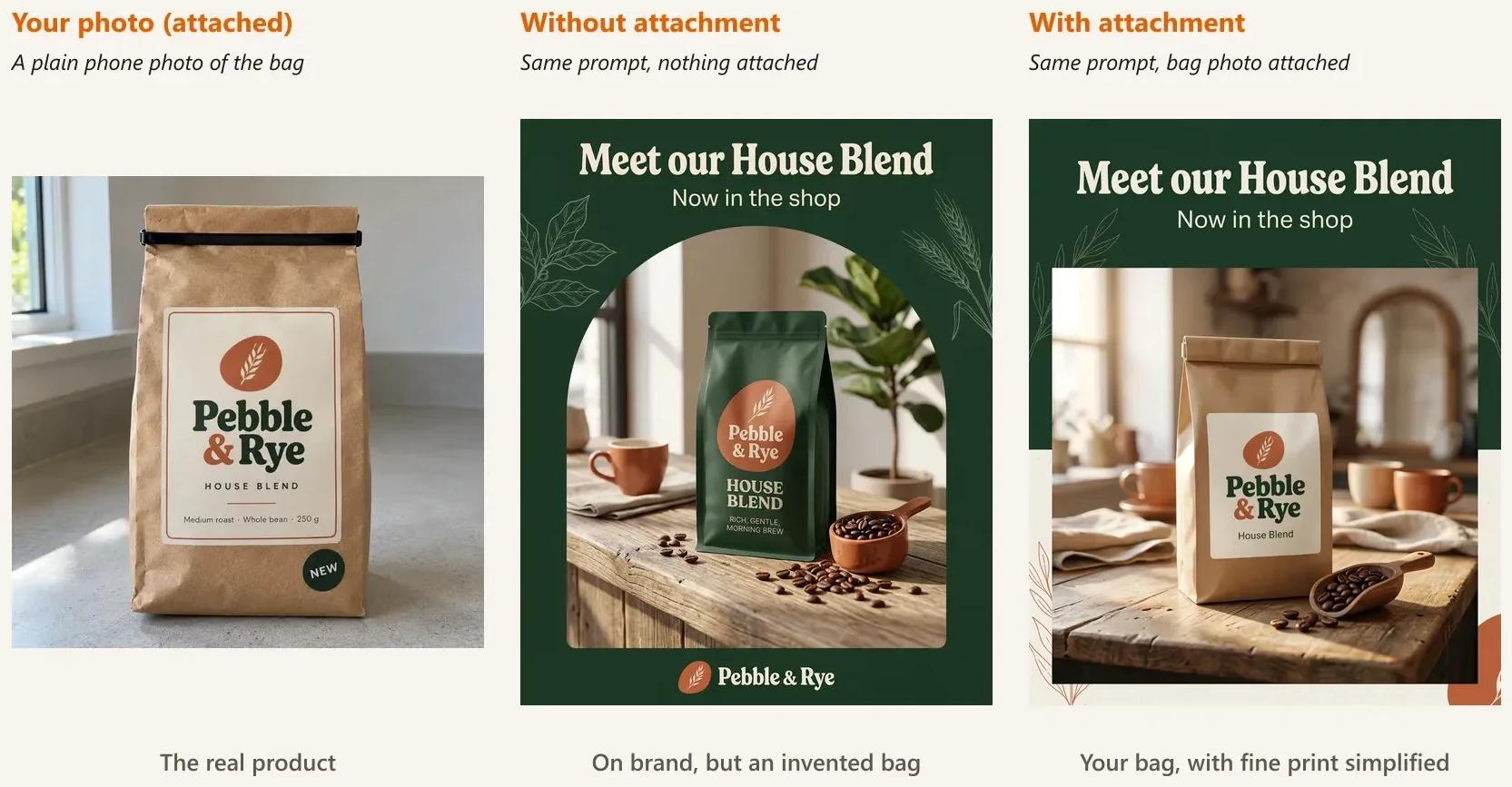
- Without the attachment, the post was on brand, but BrandGen invented a green pouch with copy we never wrote. It was not our product.
- With the attachment, the post showed our kraft bag with its cream label, logo and "House Blend".
- Small details were simplified. The "NEW" sticker, the clip and the fine print on the label did not carry over.
So check the product in the result before you post, especially small text on labels.
Can I attach my logo?
Yes. Attach your logo file the same way. If your logo is missing from most of your images, fix it once instead: add it to the Canonical Logo card on the Brand DNA page (click Brand DNA at the top of your project). See Why doesn't my image look on brand?
How many images can I attach?
One per prompt, and up to five saved per project.
Once an image is attached, click its thumbnail in the prompt bar to open Attach an image. It shows:
- Your brand image, which is always there. Once you use it, it takes one of the five places.
- Images you have attached before in this project, so you can switch between them.
- + to add a new one, and × on an image to remove it from the list.
- Remove attachment to generate without one.
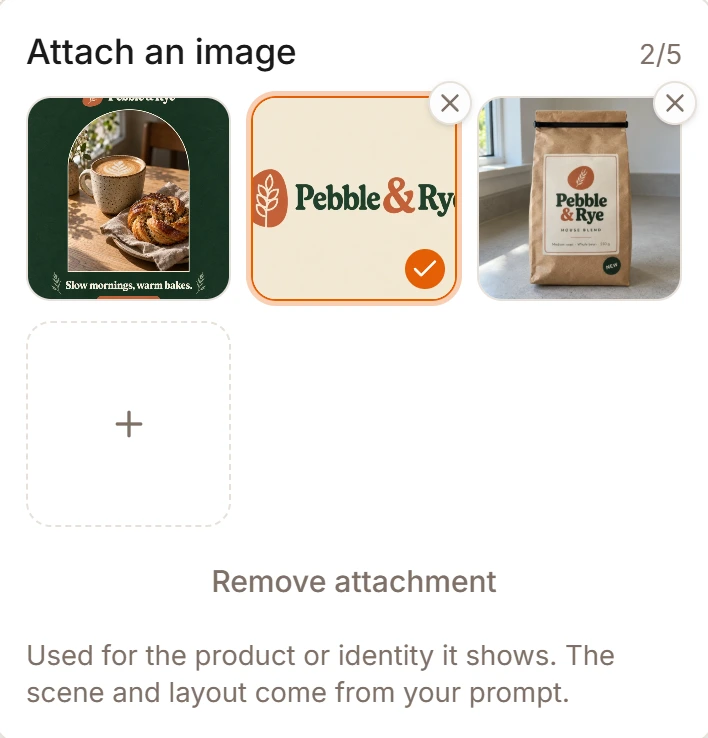
The attachment stays selected for your next prompts until you remove it. If you reload the page, or leave the project page and come back, select it again in Attach an image.
Tips for a good product photo
- One product, clearly visible. Fill most of the frame with it.
- Plain background. A table or wall is fine; skip busy scenes.
- Good light and sharp focus, so the label is readable.
- Front-facing, showing the side you want in the final image.
A plain phone photo is enough. In our test, an ordinary kitchen-counter snapshot was all BrandGen needed.
Frequently asked questions
Does attaching an image cost extra credits?
No, the cost is the same as without one. The Generate button shows the exact cost before you click.
Will the attached photo replace my brand style?
No. Your Brand DNA still applies. The attachment only tells BrandGen which product or logo to show.
Why does the product look slightly different from my photo?
The model redraws the product inside a new scene, and small details like fine print, stickers or clips can be simplified. Check the result, and use Refine on the image if something important is missing.
Can I attach more than one image to a single prompt?
No, one image per prompt. To show two products, generate them separately.
Related articles
- Why did my generation fail, and do I get my credits back?If BrandGen can't make your image, the credits go straight back to your balance. Here is what each message means, how to check the refund, and what to try next.Generating & refining - 4 min read
- How do I refine an image, compare variants and leave comments?Generate a few variants, open the one you like, describe what to change with Refine, and keep private notes in Comments. Here is how each step works, with real examples.Generating & refining - 4 min read
- Which model should I use?Start with an everyday model for drafts, then switch for the job: a premium model for text-heavy designs, a photoreal model for lifelike scenes. Real side-by-side results and how credit costs work.Generating & refining - 4 min read