We use essential cookies and product analytics to keep BrandGen reliable and improve the product. We do not use advertising cookies.
Usually one of five things: Brand DNA is switched off, the prompt asks for a different style, the logo is missing, Brand DNA misread your brand, or the brand image was weak. Here is how to spot and fix each one.
Short answer: an off-brand image usually comes from one of five things: Brand DNA is switched off, your prompt asks for a different style, your logo is missing, Brand DNA misread your brand, or the brand image you started from was weak. Check them in that order.
Look at the Brand DNA switch in the prompt bar. When it is off, BrandGen does free-form generation and ignores your brand completely. Turn it on and generate again.
When your prompt asks for a style, color palette or setting your brand never uses, the prompt can override your brand. In our testing it did.
We ran the same café launch prompt twice in the same project. The only difference was one sentence asking for a neon cyberpunk look:
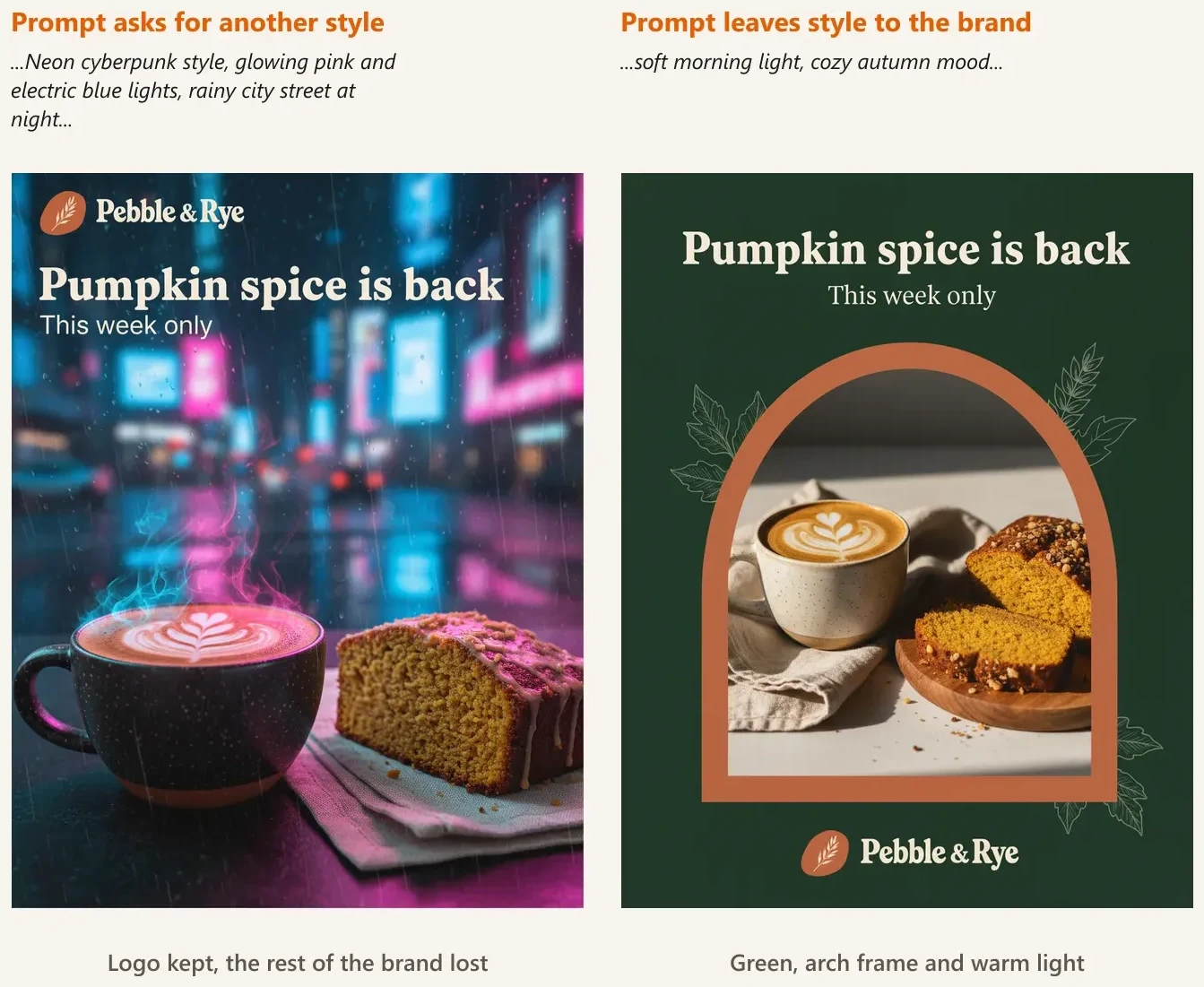
The logo and headline font survived, but the brand's colors, frame and lighting did not.
Fix: take style words out of the prompt and describe only the format, subject, mood and any exact text. Your Brand DNA supplies the look. See How do I write a prompt that gets an on-brand result?
Open the Brand tab of your project and look at the Canonical Logo card. If it says Needs logo, BrandGen could not pull a complete logo from your brand image, so your images may come out without one.
Fix: click Upload logo and add your logo file (PNG, JPEG or WebP). If a logo is already there but looks wrong, use Upload better logo to replace it.
Your Brand DNA is written out in the Brand tab, in two boxes you can edit:
Read the Identity box. If it gets something wrong, like your brand name, your colors or your layout style, correct it in plain words. Then click Save Changes at the bottom of the page. Your edits are not used until you save.
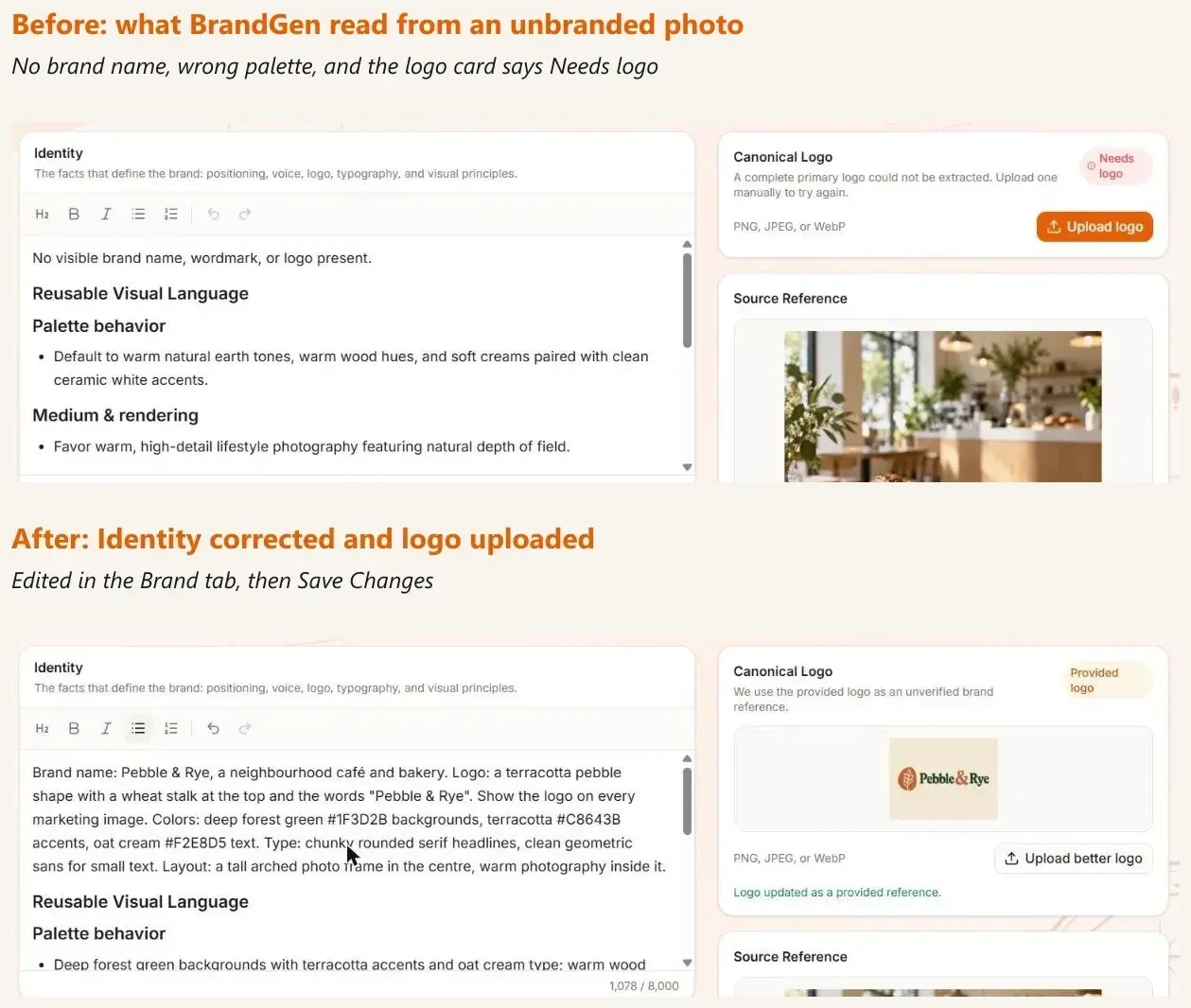
The Colors and Fonts sections below are read from your brand image and cannot be edited. If they are off, describe the right colors and fonts in Identity instead.
Here is the same project and the same prompt, before and after we fixed Identity and uploaded the logo:
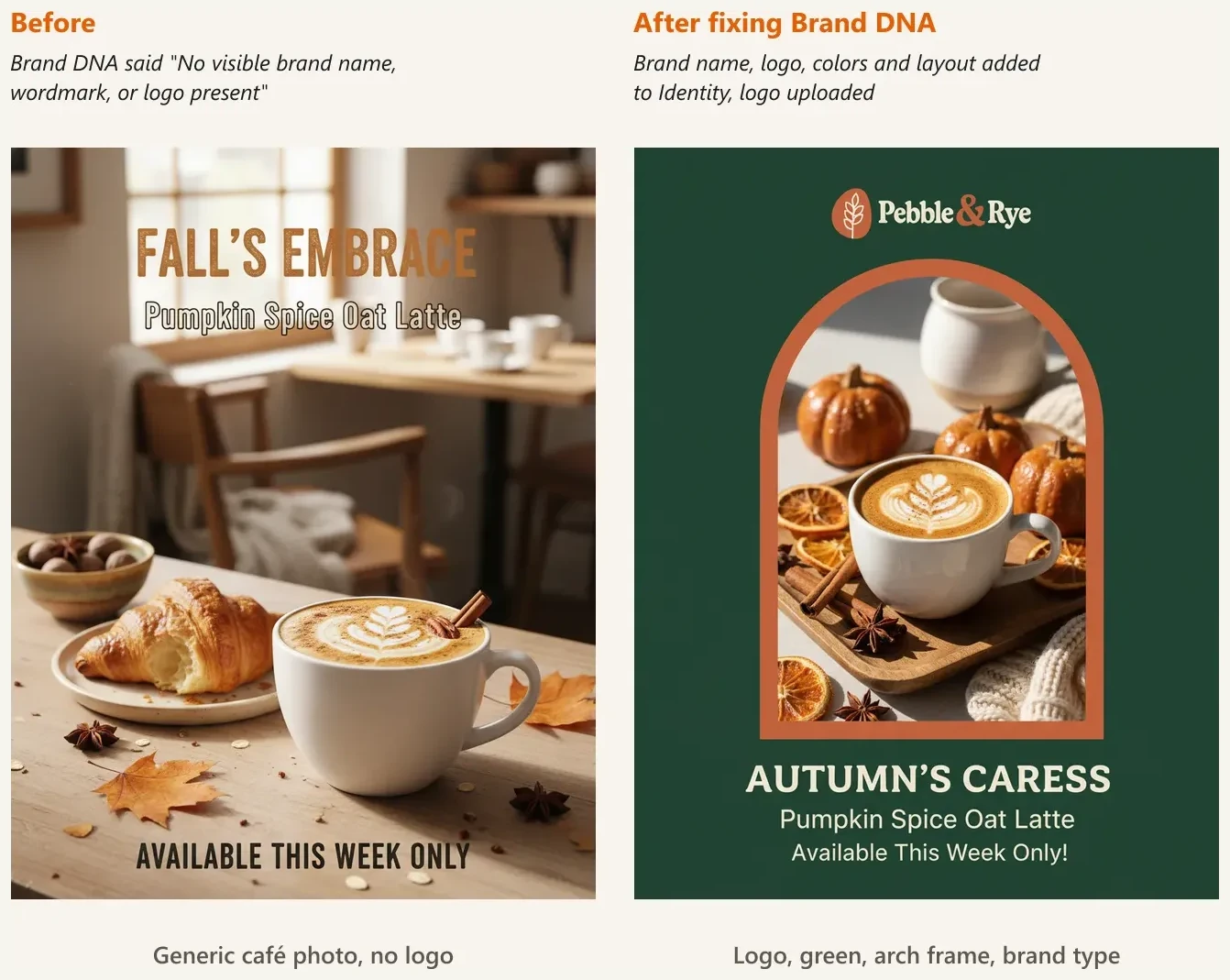
The new image picks up the fix straight away. Images you made before the change stay as they were.
If your project started from a photo with no branding, or from only a logo, Brand DNA has little to work with. You can fill in Identity by hand as above, but the most reliable fix is a new project that starts from a finished design you have already published, like a social post or ad.
If most images are on brand and one is not, you do not need to change your Brand DNA. Open the image and use Refine to describe what to change, like "use the green background and put the logo at the top". Or simply generate again.
No. Changes apply to new images only. Generate again after saving to see the difference.
No, Colors and Fonts are read from your brand image and cannot be edited. Write the correct hex codes and font style in the Identity box and save. That is what we did in the example above.
BrandGen could not extract a complete version of the logo from your brand image. Upload your logo file on its own.
No. Fix it once in the Brand tab and every new image in the project uses it. Repeating your brand in each prompt did not make results more on brand in our testing.