AI product photos for small brands: one look across your whole catalogue

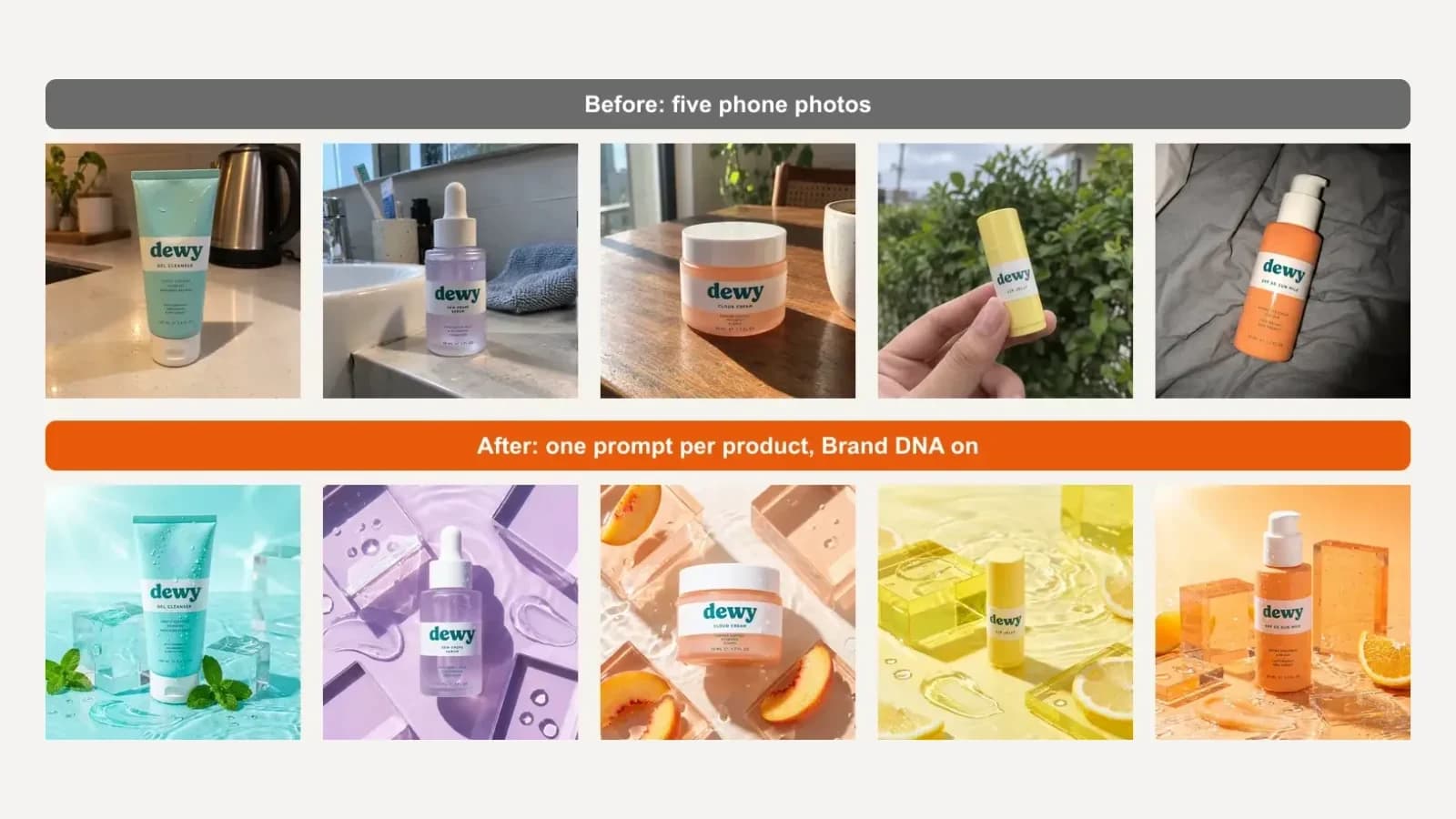
To make AI product photos that look like one brand, set your look once from a single brand image, then run every product through the same short prompt with its real photo attached. The AI changes the light, colour and setting; your product and label stay yours. Above, five phone photos shot in five different rooms become one matching catalogue.
Key takeaways
- Mismatched catalogues come from mismatched shoots: different rooms, light and phones, not bad products.
- One brand image plus one prompt template per product gives you one look across the whole range.
- Consistent is not identical. Give each product its own colour inside the same set, or the page looks copy-pasted.
- Attach a real photo of every product, and read every label before you publish.
- Marketplace main images have their own rules. Use branded shots for your store, ads and social, and check each marketplace's main-image rules.
Why do small-shop product photos never match?
Because each one was shot on a different day, in a different room, under different light. The cleanser was photographed on a kitchen counter under a yellow ceiling lamp, the serum next to a bathroom sink, the cream in harsh afternoon sun, the lip balm outdoors and the sunscreen with a phone flash on a bed.
Each photo is fine on its own. Side by side on a collection page, they look like five different shops. Shopify's own help centre makes the same point about layout: product images shown side by side display at different sizes unless you use a consistent aspect ratio for your main images (Shopify Help Center, fetched 2026-10-06).
Can AI product photos replace a white-background shot?
Not for every channel. Marketplaces and shopping ads have strict rules for the main image, and a styled scene can break them.
Google Merchant Center, for example, disapproves main images with promotional overlays such as "Shop now", prices or added logos, recommends that the product fill 75 to 90% of the frame, and accepts in-context shots through a separate lifestyle image attribute (Google Merchant Center Help, fetched 2026-10-06). It also says AI-generated images must keep the metadata that marks them as AI-made. The images we downloaded from BrandGen's Google models carry that tag, so do not strip it when you edit.
So use plain packshots where a marketplace demands them, and branded shots everywhere you control the look: your own store, collection pages, ads, email and social.
What do you need before you start?
Three things, all of which most small brands already have:
- One brand image that looks like you at your best. A past campaign post is ideal, because it shows your colours, light and props together.
- Your logo as a clean file.
- One clear photo of each product, taken anywhere. Background and lighting do not matter; the label does.
 Input. Our example brand, dewy, is an invented skincare label with a wet, glossy, sorbet-coloured look.
How do you turn mixed product photos into one look?
Set the brand up once, then run each product through the same prompt.
1. Create a project from your brand image. In BrandGen, start a new project with Brand image and upload the campaign post. Reading the brand takes about a minute. For dewy it picked up the sunlit water, the translucent acrylic, the gel swatches and the lowercase serif.
2. Upload your logo. BrandGen rebuilt our wordmark without its water droplet, so we uploaded the real logo on the Brand DNA page. From then on, every generation uses it while Brand DNA is on.
 Real screenshot of the Brand DNA page.
3. Give each product its own colour. This is the step that made the biggest difference, and we only found it by getting it wrong first (more below). In the Brand DNA editor we added one line: the same set every time, but each product gets its own colour world. Lemon yellow for the lip balm, peach for the cream, lilac for the serum, tangerine for the sunscreen, aqua for the cleanser.
4. Run one prompt per product. Attach one product photo, then use the same prompt every time and change only the product name:
"Product photo for our online shop: the attached cloud cream jar standing upright on our campaign set with matching props, the whole product fully visible, facing the camera, sharp focus. Only one product in the frame. Keep the product and its label exactly as in the attached photo, including the dewy wordmark and all label text."
The prompt says nothing about colours, light or props. Brand DNA decides those, which is why the five results match.
What does the catalogue look like before and after?
One set, five products, each in its own colour, all with the right label. That is the image at the top of this post.
For contrast, we ran the exact same serum prompt with Brand DNA switched off. The result is a clean, professional product photo: wet stones, ferns, a grey towel. It is also the look of a thousand other skincare brands, and nothing like dewy.
 Output. Left: Brand DNA off. Right: Brand DNA on. Same prompt, same attached photo, same model.
Can you go beyond the packshot?
Yes. Product pages also need in-use and texture shots, and the same Brand DNA carries into them. We asked for a hand dropping serum into a palm, and a swirl of cream next to the open jar.
 Output. In-use and texture shots from the same project.
One limit to know: each prompt takes one attached image, picked from up to five saved in the project. To show your whole range in one picture, make the individual shots and combine them, rather than asking the AI to draw products it has not seen.
What went wrong on the way?
Three things, and each one is worth checking in your own run.
 The cleanser shot in three rounds.
- The logo disappeared. Our first prompt ended with "No text, no logo overlay." The model obeyed and wiped the dewy wordmark off the tube itself. Never tell the model to remove text; tell it to keep the label exactly as in the photo.
- Everything looked the same. With the logo fixed, every product came back on the same lilac block with the same lemons and peaches. Consistent, but it read as one photo pasted five times. The per-product colour line in Brand DNA fixed it.
- Small print drifts. The big wordmark was right in every final image, but tiny ingredient text on the cream jar came out garbled, and the in-use serum shot drew the wordmark in a lighter serif. Zoom in on every label before you publish.
 Real screenshot of the prompt that cost us the logo.
Got any questions left?
Try it
Upload one image that looks like your brand on the BrandGen homepage and run your first product through it. Read what Brand DNA is, see more ecommerce examples, browse the gallery and compare plans on pricing.
Give your whole catalogue one look
Upload a product photo, keep Brand DNA on, and get on-brand product shots for your shop.
Keep reading
- Turn your website into on-brand images: Brand DNA from one URLPaste your homepage URL and BrandGen learns your colours, fonts, logo and voice, so every AI image it generates stays on brand.6 min read
- Brand guidelines for AI image generation: what to include (+ copy-paste template)Why normal brand guidelines fail with AI image tools, the ten things AI-ready guidelines need, a copy-paste template, and real side-by-side results from vague versus detailed guidelines.7 min read
- Which AI image model should you use for product shots, posters and text-heavy ads?We gave 16 AI image models one brand and three briefs in BrandGen. Here is which model to reach for on product shots, posters and text-heavy ads.13 min read