
Brand guidelines for AI image generation: what to include (+ copy-paste template)

Brand guidelines for AI image generation should describe what your images look like, not how your brand feels: exact colours, light, composition, props, how type looks, who appears, and what to avoid. Write them once, give them to your AI tool, and keep each prompt about the content. Below is a template you can copy, and what happened when we tested it.
Key takeaways
- Words like "friendly", "bold" and "premium" mean almost nothing to an image model. Hex codes, light and props do.
- A brand kit stores your files. AI guidelines describe the pictures you want made from them.
- Your logo does more than you think: in our test it carried the colours and type on its own.
- The template only beats vague text if it describes a look you actually like. Our first draft looked worse.
- Pair every "never" with what to do instead, and test with three everyday prompts.
Why do normal brand guidelines fail with AI?
Because they were written for people. A designer reading "fresh, playful, premium" fills the gaps with years of context about your brand. An image model fills them with its own defaults, and those change from one image to the next.
Google's own prompting advice for its Nano Banana image models makes the same point: "Be hyper-specific: The more detail you provide, the more control you have" (Google AI for Developers, updated 2026-09-23). A brand book full of adjectives is the opposite of hyper-specific.
Isn't my brand kit enough?
Not on its own. A brand kit is a store of assets. Canva describes its Brand Kits as a place to "upload and organize your team or organization's official logos, colors, fonts, and assets in one place" (Canva Help Center, fetched 2026-10-06).
Those files matter, and you should give your AI tool your real logo. But a font file does not tell a model what your photos look like, where the light comes from, or whether people appear. That is the gap AI guidelines fill.
What should AI brand guidelines include?
Ten short sections. Each one answers a question the model would otherwise answer for you.
- Brand: the name, spelled exactly, and what you sell.
- Logo: what it looks like, and an instruction to use the uploaded file rather than redraw it.
- Palette: hex codes, plus a rule for how colours are used (backgrounds, text, accents).
- Photo style: real photo or illustration, type of light, colour saturation.
- Composition: how full the frame is, camera angle, where text goes.
- Subject: what your hero subject looks like at its best (for us, "lush, overflowing bunches").
- Props and materials: the things that recur in your images, and the ones that never appear.
- People: whether they appear, and how much of them.
- Type on images: how headlines and small lines look, case, colour and maximum length.
- Avoid: the model's likely defaults that are wrong for you.
On that last one, Google suggests "semantic negative prompts": describe the scene you want positively instead of only listing what to leave out. So every "never" in the template sits next to what to do instead.
The copy-paste template
Replace everything in capitals after each colon. Keep each section to one or two lines.
BRAND: [NAME], a [WHAT YOU ARE] in [WHERE]. Name always written "[EXACT SPELLING]".
LOGO: [WHAT IT LOOKS LIKE]. Use the uploaded logo file; never redraw it.
PALETTE: [COLOUR NAME #HEX], [COLOUR NAME #HEX], [COLOUR NAME #HEX]. Backgrounds are [RULE]. Never [WRONG COLOURS].
PHOTO STYLE: [REAL PHOTO / ILLUSTRATION]. [TYPE OF LIGHT]. [COLOUR FEEL].
COMPOSITION: [HOW FULL THE FRAME IS], [CAMERA ANGLE], [WHERE TEXT SITS].
SUBJECT: [WHAT YOUR PRODUCT OR HERO SUBJECT LOOKS LIKE AT ITS BEST]. Never [THE WEAK VERSION].
PROPS & MATERIALS: [3-5 RECURRING PROPS]. Never [PROPS THAT ARE OFF-BRAND].
PEOPLE: [NONE / HANDS ONLY / FULL PEOPLE], [ANY RULES].
TYPE ON IMAGES: headlines in [HOW THE FONT LOOKS], [CASE], [COLOUR]. Small lines in [HOW THEY LOOK]. Max [N] words per headline.
MOOD: [3 WORDS]. Not [2 THINGS YOU ARE NOT].
AVOID: [STYLES, PROPS AND FONTS THE MODEL MIGHT DEFAULT TO].
Put facts that are not about the look in a separate box: products, prices, address, tagline and audience. In BrandGen that box is called Knowledge.
What does the difference look like?
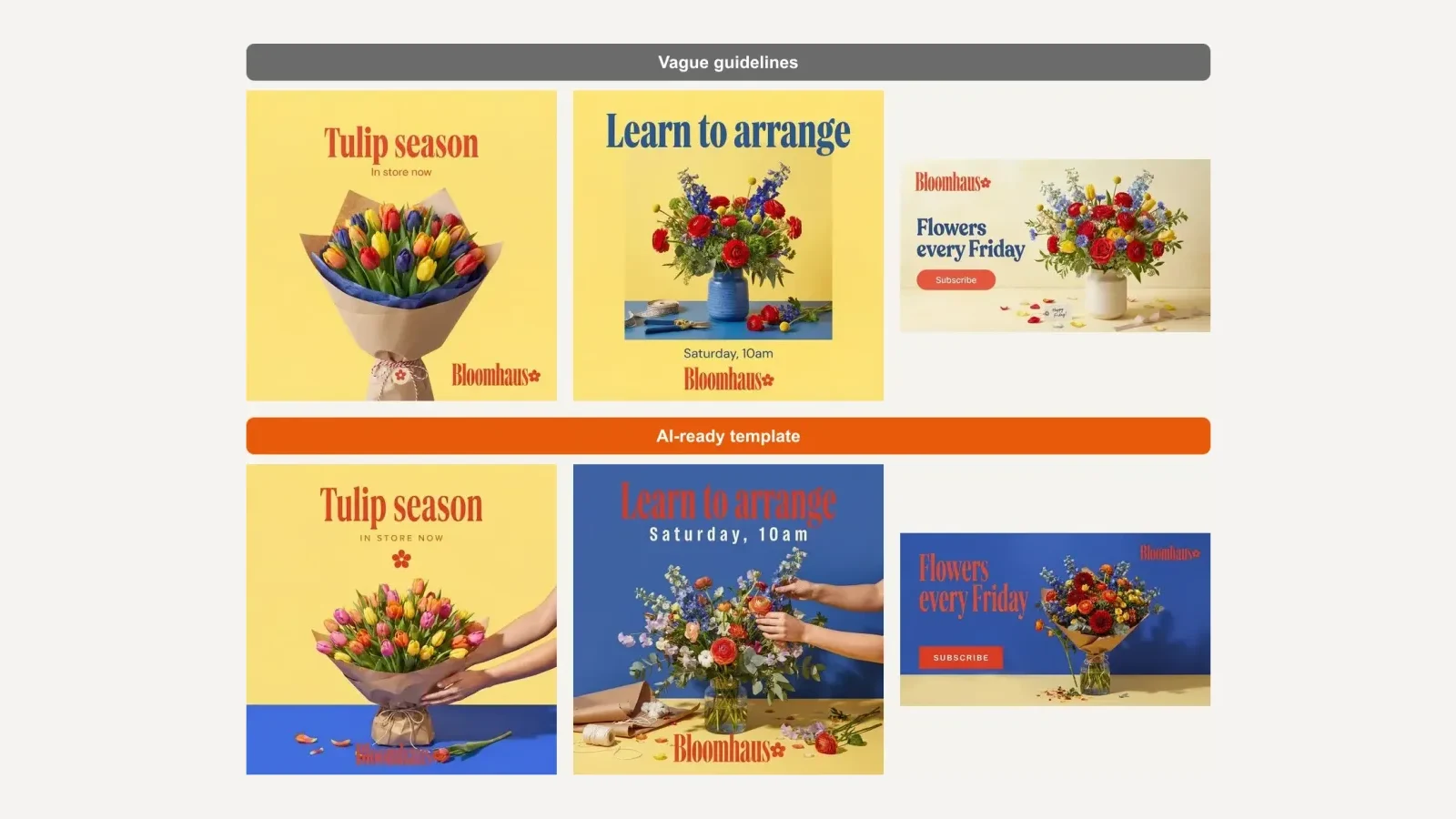
We invented a neighbourhood flower shop, Bloomhaus, made its logo, and set up two projects with the same logo. One got four vague lines ("a friendly, modern flower shop. Bold and colourful. Fresh, playful, premium. Colours: red, yellow and blue."). The other got the full template. Then we ran the same three prompts in each, with no style words in any of them.
 Pair 1, Instagram post. Prompt: "Instagram post: a bunch of tulips wrapped in paper. Headline "Tulip season". Small line "In store now"."
 Pair 2, poster. Prompt: "Poster for a Saturday flower-arranging workshop. Headline "Learn to arrange". Line "Saturday, 10am"."
 Pair 3, banner. Prompt: "Website banner for our weekly flower subscription. Headline "Flowers every Friday". Button "Subscribe"."
In our testing, the template held one visual language across all three formats: a two-colour backdrop, hands reaching in, kraft paper, flash light, and small lines in spaced capitals. The vague version looked pleasant but generic, and on the banner it drifted to a cream background, a white vase and a handwritten tag, the exact cursive script the template rules out.
Two honest notes. First, the vague version looked better than we expected because the logo did a lot of work: its tomato red and tall serif turned up in every headline. Second, our first draft of the template described "one hero subject, lots of empty backdrop", and the results looked stark next to the vague ones. Rewriting that line to "lush, overflowing, abundant bunches" fixed it. A template only helps if it describes a look you love.
Where do the guidelines go in BrandGen?
Start a new project and choose Manual. Paste the template into Identity ("the brand's canonical identity") and your products, address and tagline into Knowledge (optional). Each box takes up to 5,000 characters.
 Real screenshot of the Manual setup.
Stuck on where to start? The Examples button loads a preset to edit: SaaS / Tech Startup, Personal Brand / Creator, Luxury / Premium, E-commerce / Product or Agency / Studio.
After you continue, BrandGen opens the Brand DNA page and asks for your logo. Upload the real file there, and every image uses it while Brand DNA is on.
 Real screenshot of the Brand DNA page after setup.
If you already have one image that looks like your brand at its best, the Brand image option is the shortcut: BrandGen reads the image and writes this kind of description for you, which you can then edit. See What is Brand DNA?
How do you test and improve your guidelines?
Run the same three everyday prompts every time you change them: a social post, a poster and a banner. They cover square and wide formats, and text-heavy and image-heavy layouts.
- Change one line at a time, so you know what fixed what.
- Fix the look, not the prompt. If every image is too sparse, edit the composition line in your guidelines rather than adding "make it fuller" to every prompt.
- Check the details: logo placement, spelling, hands and anything you listed under Avoid. Two of our images needed one refine each, one to remove an arm with no body and one to add a missing logo.
Got any questions left?
Try it
Copy the template, fill it in and paste it into a new Manual project on BrandGen. Browse more real outputs in the gallery, see use cases by industry, and compare plans on pricing.
Turn your brand guidelines into on-brand images
Paste your written guidelines or upload one reference image, and BrandGen builds your Brand DNA.
Keep reading
- Which AI image model should you use for product shots, posters and text-heavy ads?We gave 16 AI image models one brand and three briefs in BrandGen. Here is which model to reach for on product shots, posters and text-heavy ads.13 min read
- Nano Banana vs Nano Banana Pro: when is Pro worth it?We ran the same five on-brand prompts on Nano Banana 2 Lite, Nano Banana 2 and Nano Banana Pro. Here is where Pro earned its extra credits, where it did not, and which plan you need.6 min read
- Best AI Image Generators for On-Brand Marketing (2026)BrandGen, Canva, Kittl, Recraft, Adobe Firefly, Pomelli and Photoroom compared on brand memory, logo handling, reference images and price (Oct 2026).9 min read