Turn your website into on-brand images: Brand DNA from one URL

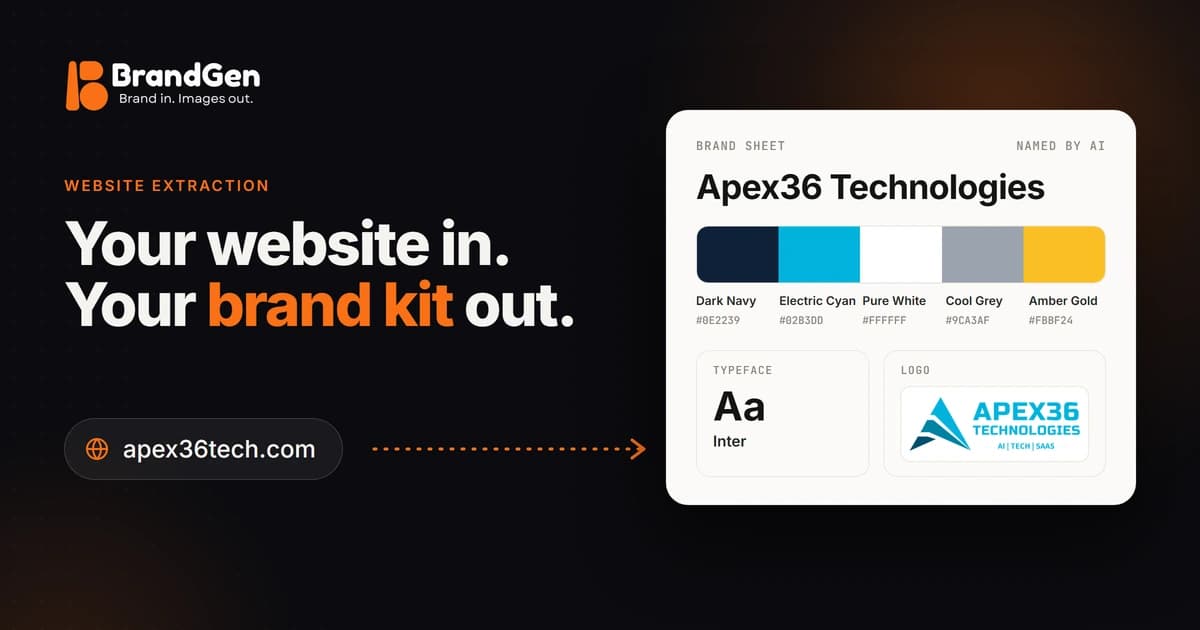
To turn your website into on-brand AI images, paste your homepage URL into BrandGen's "Website" option. BrandGen reads your site's colours, fonts, logo and voice into a Brand DNA, then follows it on every image you generate. In our test on apex36tech.com the setup finished in under a minute, used no credits, and kept the brand's navy and cyan exactly.
Your website already holds most of your brand rules: the colours in your stylesheet, the fonts you load, the logo in your header and the way you write. This guide shows what BrandGen reads, what it can't see, and how to check the result before you generate your first on-brand image.
Key takeaways
- Paste one URL and BrandGen learns your brand; every image you generate afterwards follows it.
- BrandGen reads one page plus the files it loads (stylesheets, logo, share image), not your whole site.
- Colours and fonts come from your code, so hex values and font names are exact, not guessed from a picture.
- Code only hints at your photography style, through your share image, so describe it yourself if it matters.
- If your site blocks automated visitors, use a screenshot as a brand image instead.
What is Brand DNA, and why start from a website?
Brand DNA is the set of rules BrandGen sends with every image you generate: your colours, type, logo and style (what Brand DNA is). You can build it from a brand image, from written guidelines, or from your website.
The website route is the quickest when your site is already on brand. Your colours and fonts sit in your code as exact values, and around 87% of websites load web fonts, so the font names are usually right there to read (HTTP Archive Web Almanac 2024, Fonts).
How do you set up BrandGen from your website?
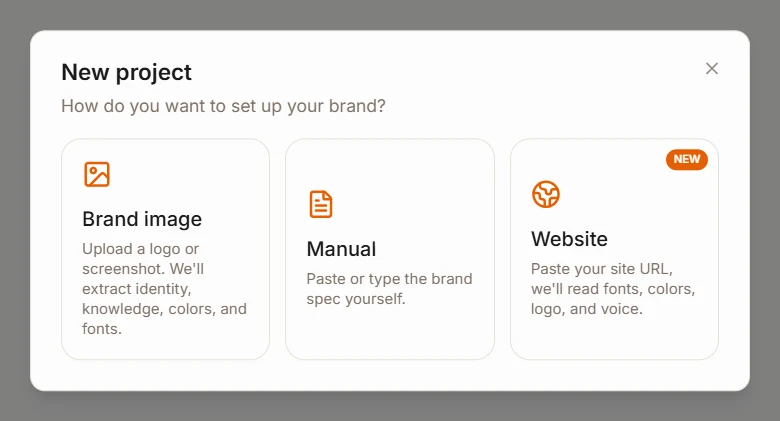
Start a new project, pick "Website", and paste your homepage address. That's the whole input.
- In your workspace, click New project, then choose Website.
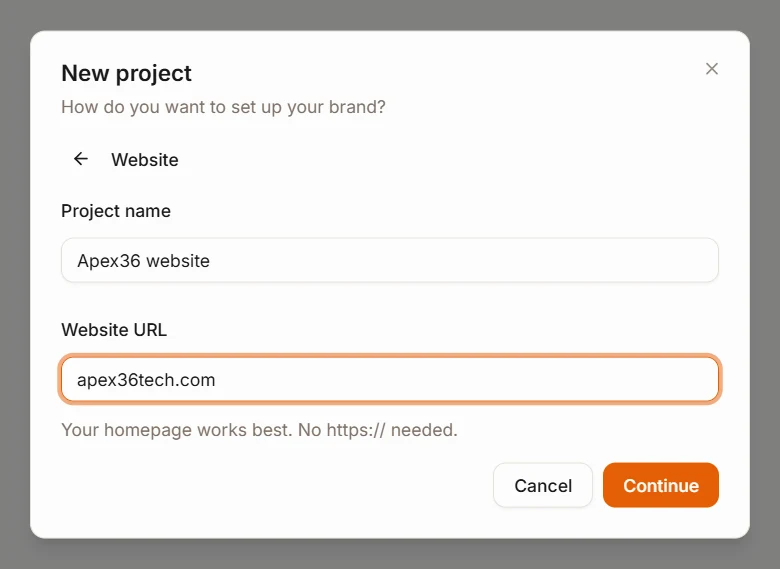
- Name the project and type your URL. You don't need
https://, and your homepage works best.
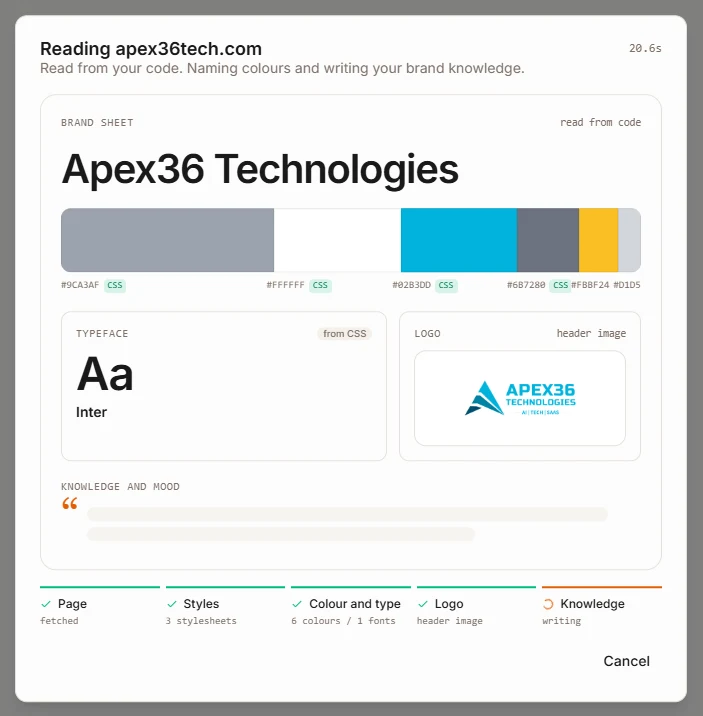
- Click Continue and watch the brand sheet fill in. It moves through five steps: Page, Styles, Colour and type, Logo, and Knowledge.
- When it finishes, BrandGen opens your Brand DNA page so you can check it. You may see it refine the result from a screenshot of your site for up to a minute first.
What does BrandGen read from your website?
BrandGen fetches your page and the files it loads, then pulls brand signals from each:
| Signal | Where it comes from |
|---|---|
| Colours | Colours actually painted on the page, plus colour variables in your CSS |
| Fonts | Font families named in your stylesheets |
| Logo | The image or SVG in your site header, or the logo in your structured data |
| Voice and facts | The text on the page |
| Imagery hint | Your share image (the og:image your site sets for link previews) |
It also checks common brand-kit addresses on your domain, such as /brand, /press and /media-kit. If it finds a published brand guidelines page, those rules win over anything it inferred.
An AI step then turns the raw values into usable rules. In our test on apex36tech.com, the scan listed six colours and one font from three stylesheets. It also read the colours painted straight into the page, like the navy #0E2239 on the site's panels, which never appears in the stylesheet list. The finished Brand DNA dropped two near-duplicate greys and kept five colours, each with a name and a role: Dark Navy #0E2239 (dominant background), Electric Cyan #02B3DD (accent), Pure White #FFFFFF (text), Cool Grey #9CA3AF (neutral) and Amber Gold #FBBF24 (supporting). Inter came through as the primary typeface, in Bold, Medium and Regular, with sentence case for titles and body and uppercase for small labels.
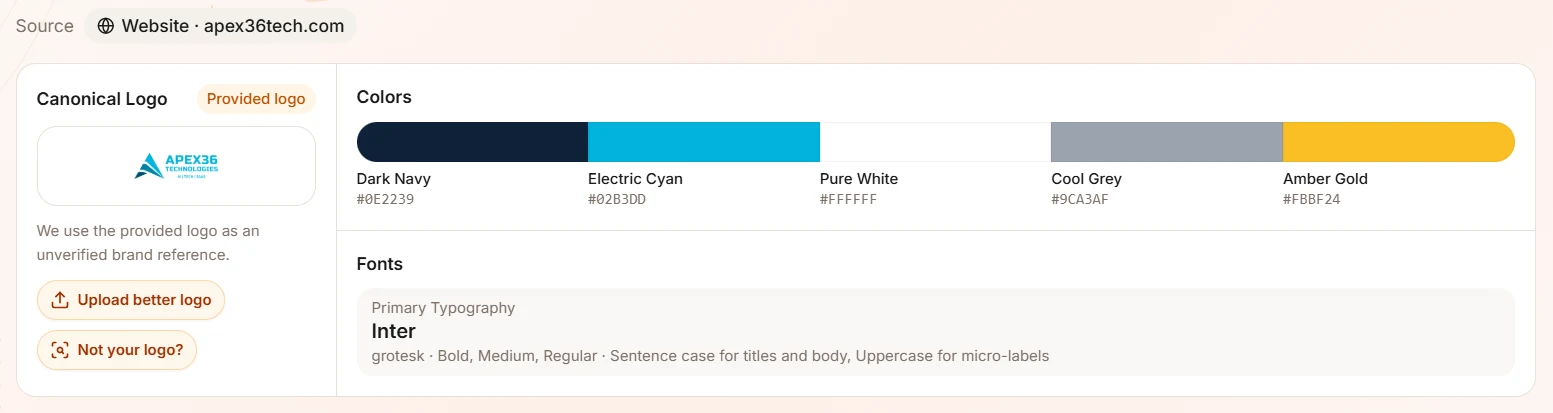
The written part is just as concrete. The Identity section described the logo mark, the wordmark and tagline, and rules such as "Default to deep dark navy blue (#0E2239) for section backgrounds and main canvas containers". The Knowledge section summed up what the company does and who it serves.
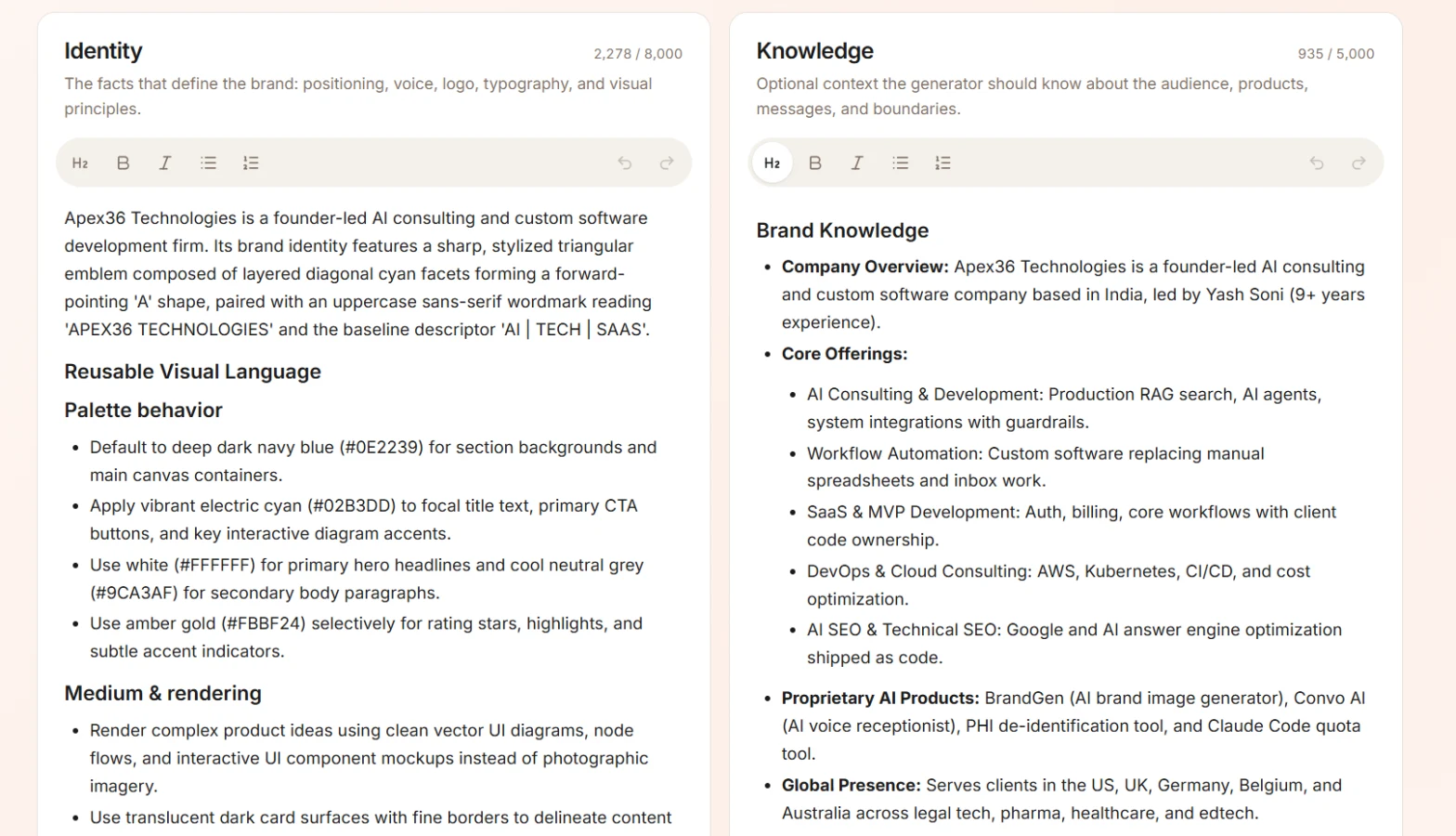
What can't BrandGen read from a website?
Code tells BrandGen what your brand looks like on screen, not how you photograph products or what materials you use. Your share image gives it a hint about medium, lighting and mood, but if photography matters to your brand, describe it in the Identity section yourself.
It also doesn't do a few things you might expect:
- It reads one page, not your whole site. Use the page that best shows your brand, usually the homepage.
- It doesn't log in, so a page behind a login can't be read.
- It doesn't read PDF brand books. Paste their rules into the Identity section instead.
- It doesn't run your site's JavaScript during the main read, so a page that draws everything with scripts may give it little to work with.
What should you check before you generate?
Spend a minute on the Brand DNA page before your first image. Three things matter most:
- Logo. Make sure it's your real logo. If not, click Not your logo? to pick it on your site, or Upload better logo.
- Identity and Knowledge. Both are editable text. Add your photography style, any colours or words to avoid, and product facts the homepage doesn't mention.
- Colours. Check that the named brand colours match your own. If one is wrong, write the correct value in Identity, since that text goes with every generation.
Then click Create images and write your first prompt. While Brand DNA is on, every image in the project follows it, so your colours, type and style carry through without restating them in each prompt.
What if your website can't be read?
When a site refuses or times out, BrandGen tells you why and offers a way forward. You'll see one of these messages: "This site blocks automated readers", "That site took too long to respond" or "Couldn't reach that page".
Blocking is getting more common. Since July 2025, Cloudflare, which handles traffic for about 20% of the web, blocks AI crawlers by default unless the site owner allows them (Cloudflare, July 2025). If your site's protection turns BrandGen away, pick Use a screenshot instead: a screenshot of your homepage works as a brand image. If the page simply had too little to go on, BrandGen suggests pages like /about or /brand to try.
Got any questions left?
Try it
Paste your homepage into a new project, check the Brand DNA it builds, and generate your first on-brand image. Free accounts can do it too: see the plans, browse what BrandGen makes, or read the step-by-step Brand DNA setup guide.
Turn your website into on-brand images
Keep reading
- Brand guidelines for AI image generation: what to include (+ copy-paste template)Why normal brand guidelines fail with AI image tools, the ten things AI-ready guidelines need, a copy-paste template, and real side-by-side results from vague versus detailed guidelines.7 min read
- Which AI image model should you use for product shots, posters and text-heavy ads?We gave 16 AI image models one brand and three briefs in BrandGen. Here is which model to reach for on product shots, posters and text-heavy ads.13 min read
- Nano Banana vs Nano Banana Pro: when is Pro worth it?We ran the same five on-brand prompts on Nano Banana 2 Lite, Nano Banana 2 and Nano Banana Pro. Here is where Pro earned its extra credits, where it did not, and which plan you need.6 min read